This guide explains how to change your password in two places: the Epicor desktop client, and the JW ONE mobile app. Follow the section that applies to how you use the system. If you use both, update both.
The New Password Policy
We are strengthening the Epicor password policy to improve security. Your new password must be at least 8 characters and include a mix of uppercase, lowercase, number and special character — and it can no longer be the same as your User ID.
| Setting | Current Policy | New Policy |
|---|---|---|
| Minimum length | 4 characters | 8 characters |
| User ID as password | Allowed | Not allowed |
| Lowercase / uppercase / digit / special | Not required | Required |
| Minimum character categories | None | 4 |
| Blank password on reset | Allowed | Not allowed |
A. Changing Your Password in Epicor (Desktop)
Use this method when you can already log into the Epicor client and simply want to change your password.
-
Open Settings.
From the Epicor Home screen, click the Settings tile (the gear icon).
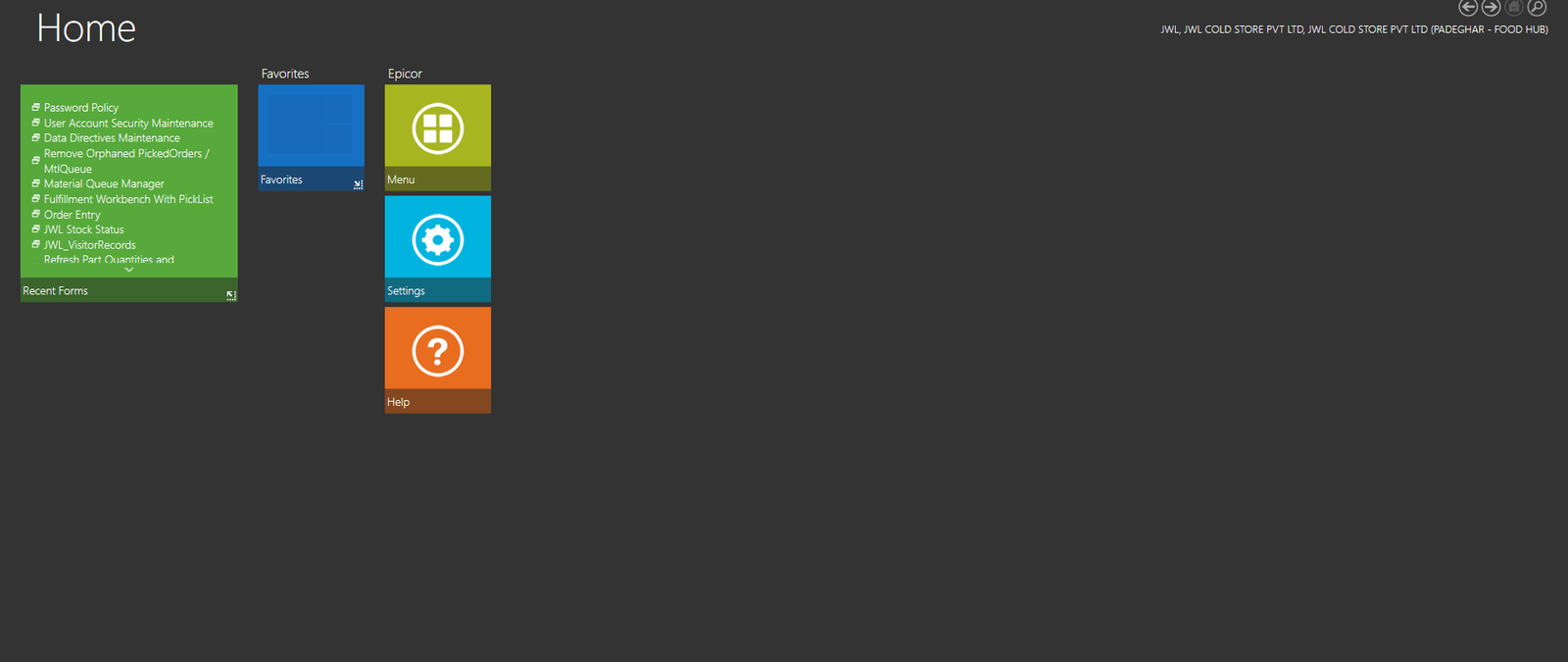
Epicor Home screen — click the Settings tile -
Open General Options and click “Change Password…”.
In Settings, make sure General Options is selected on the left. Your current
user is shown at the top, e.g. Change User (PSUSHANT). Click Change Password…
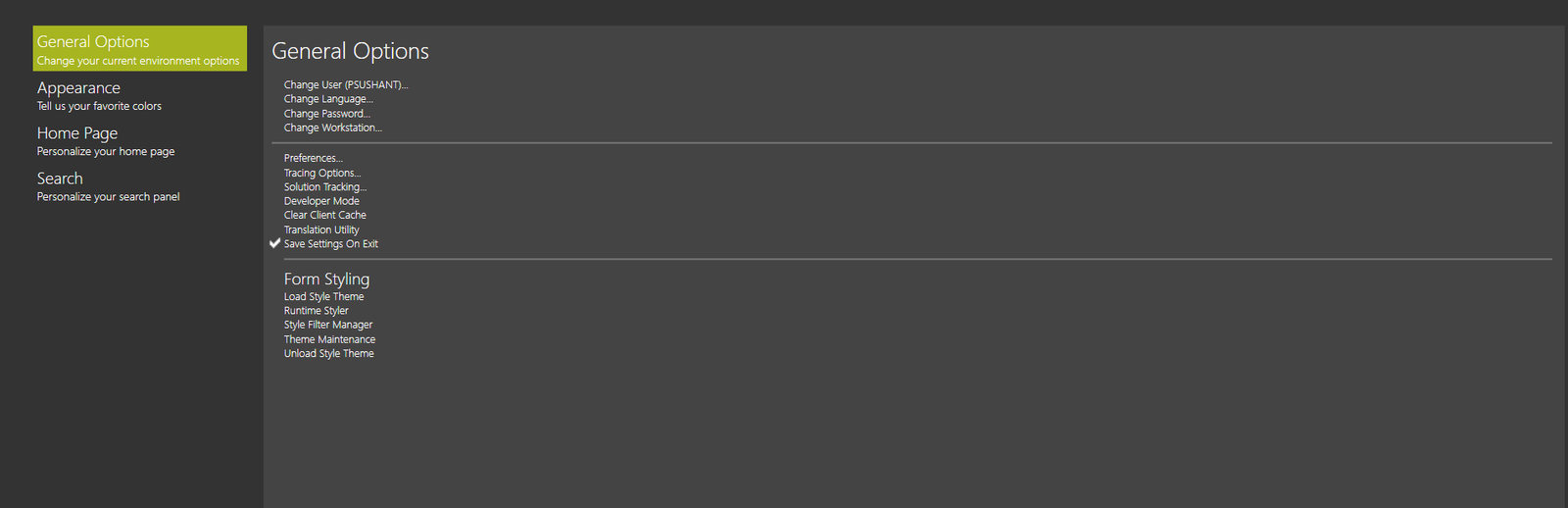
General Options — Change Password… - Enter your passwords and save. Enter your current password, then your new password (meeting the policy above), and confirm it by typing it again. Save. The new password takes effect at your next login.
B. Changing Your Password in the JW ONE App
JW ONE uses a Forgot Password flow. It first finds your account by your User ID, then sends a temporary password to the email address registered on that account. You use that temporary password to log in and set your own new password.
-
Enter your User ID.
On the JW ONE login screen, type your User ID (for example, psushant) in the
UserID field. You can leave the password field blank for now.
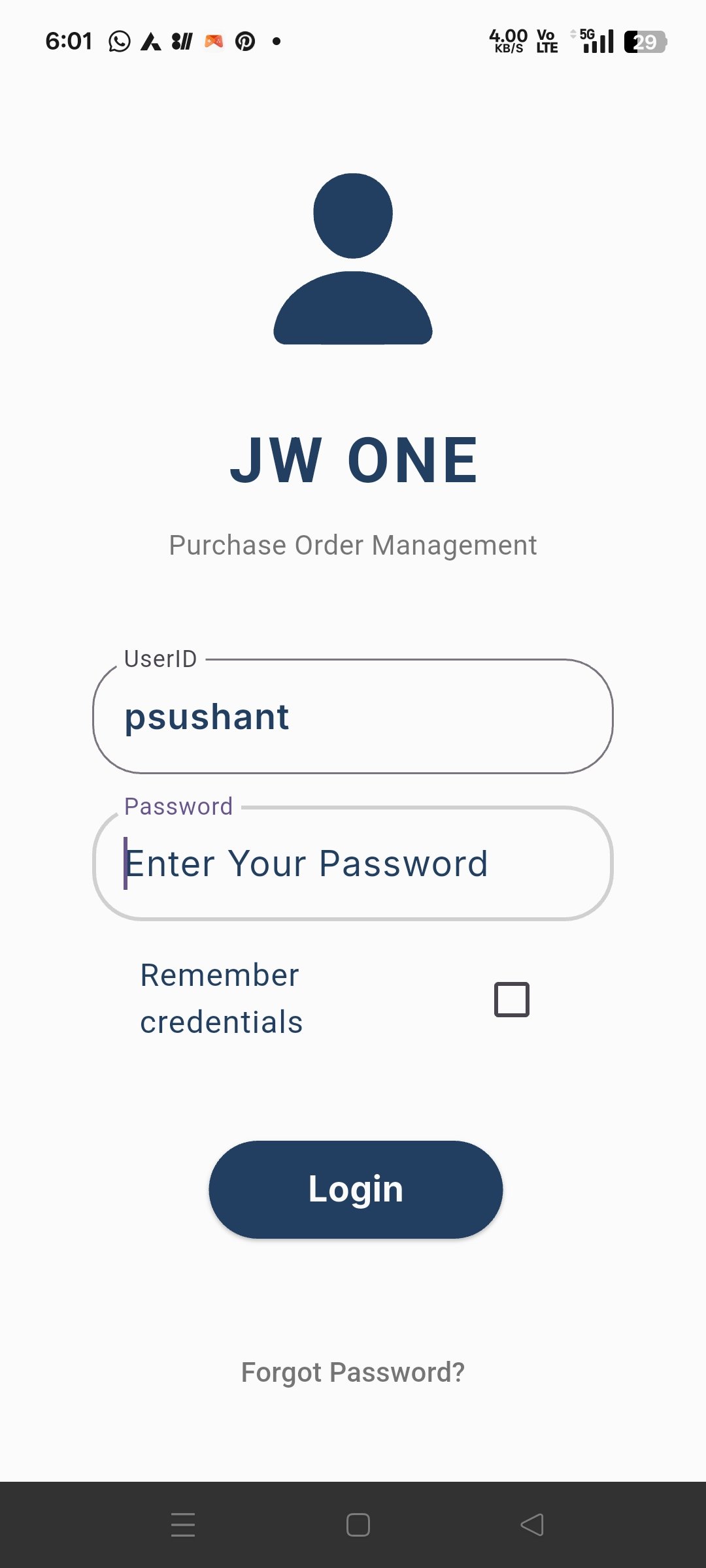
JW ONE login — enter your User ID -
Tap “Forgot Password?” and confirm your email.
Tap Forgot Password? at the bottom. The app looks up your account by the
User ID you entered. A box appears showing your registered email address —
check it is correct, then tap Send Temporary Password.
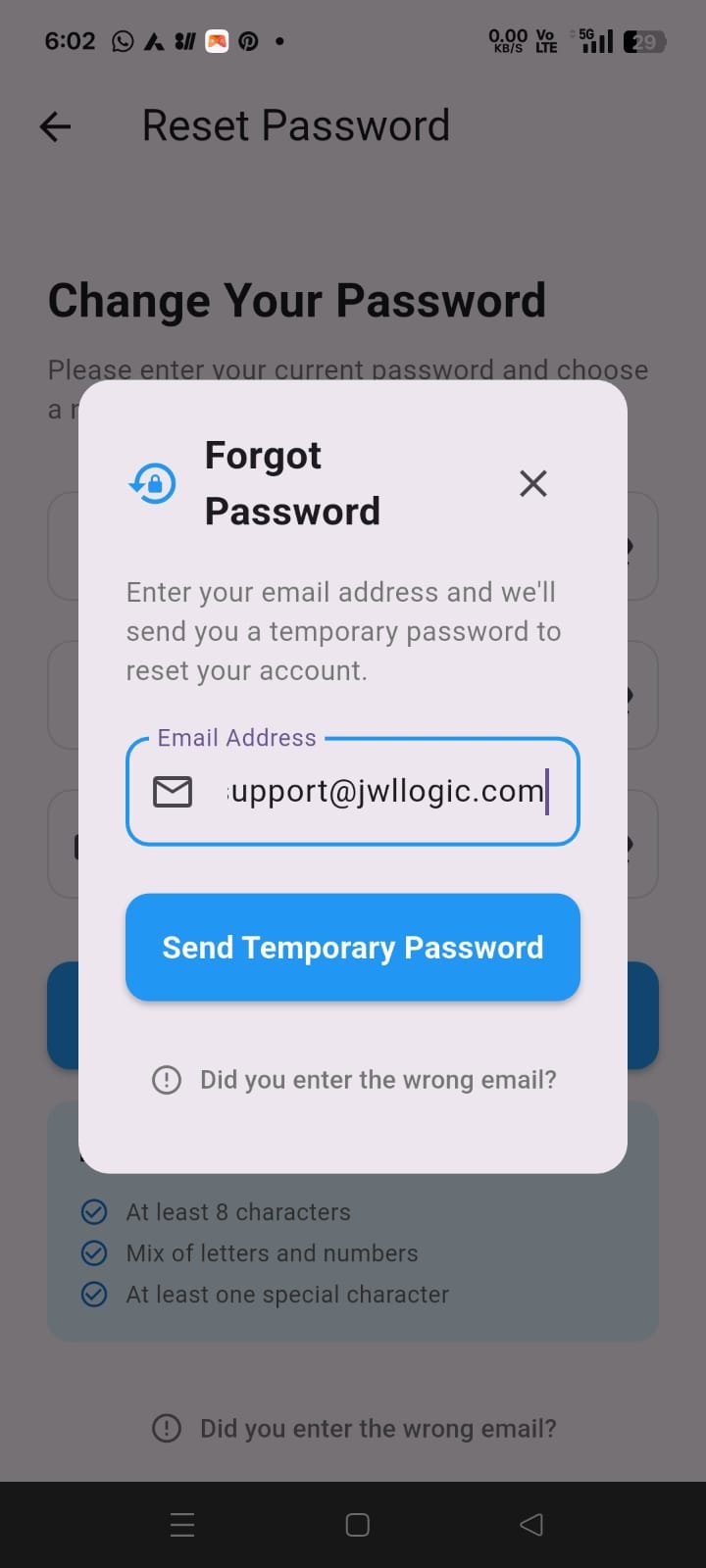
Forgot Password — confirm the email, then Send Temporary Password -
Get the temporary password from your email.
You will receive an email titled “Temporary Epicor Password” containing a
temporary password. Open it and copy that password.
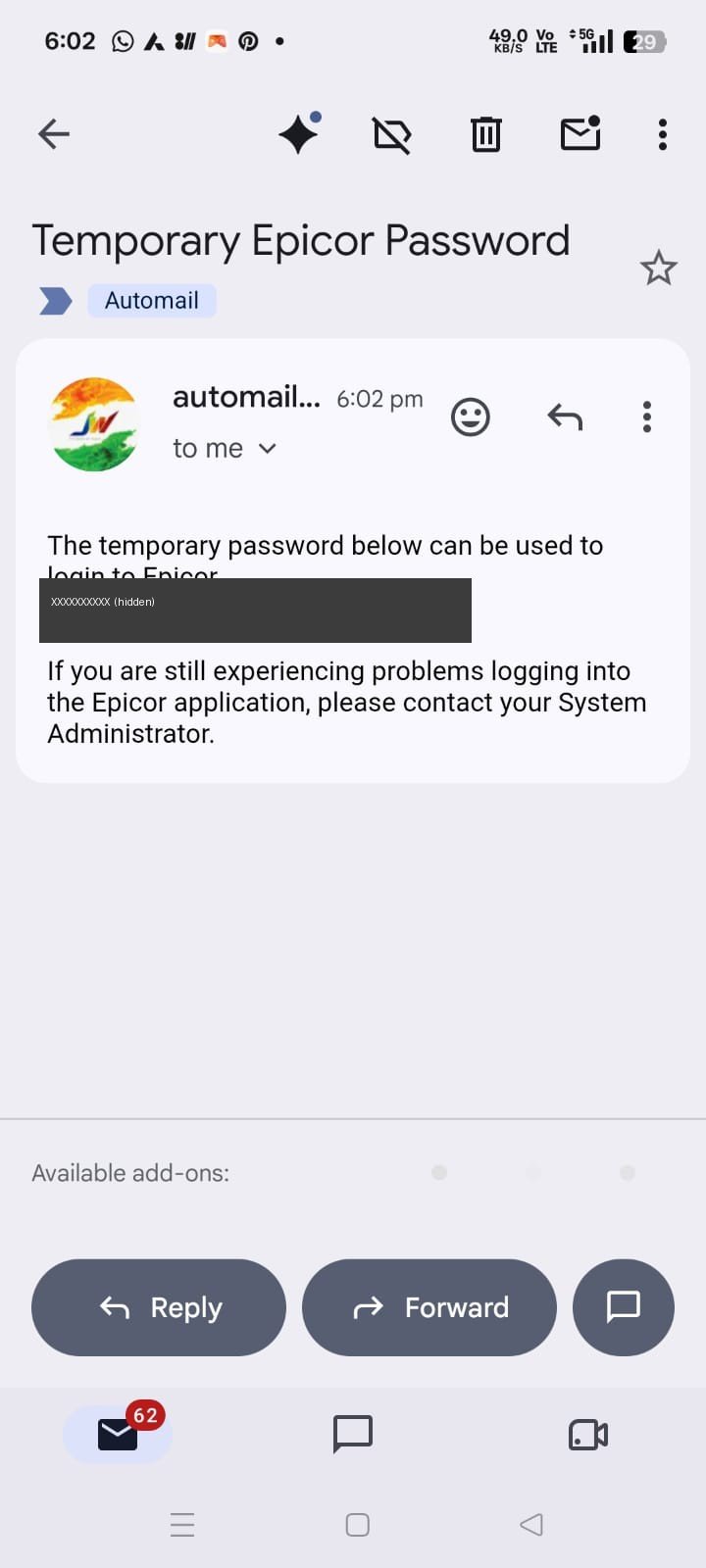
The “Temporary Epicor Password” email (password hidden here for security) -
Enter the temporary and new passwords.
Back in the app, on the Change Your Password screen enter: Current Password =
the temporary password from the email; New Password = your own new password
(meeting the requirements); Confirm Password = the same new password again.
Then tap Change Password.
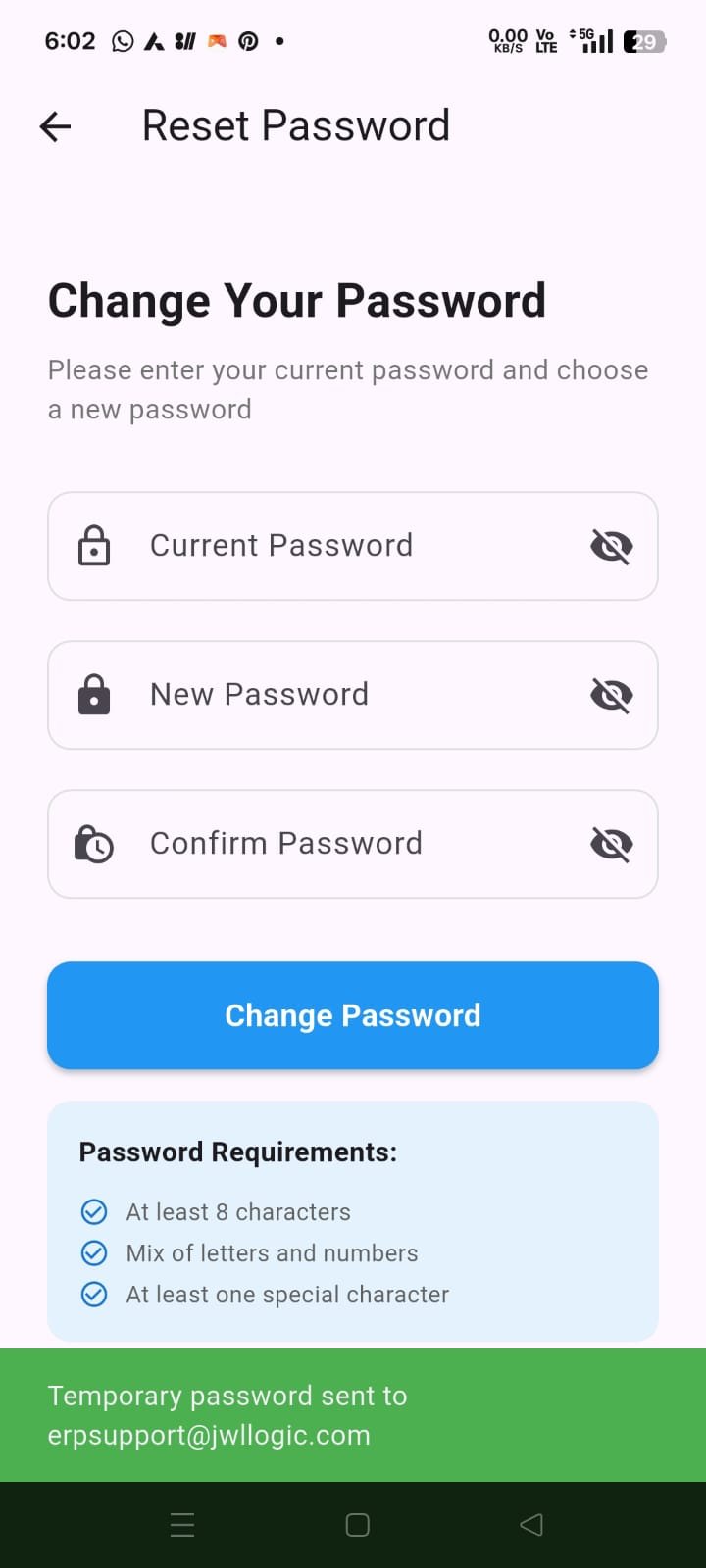
Change Your Password screen — fields and requirements -
Done.
When successful you will see “Password changed successfully!” You can now log
in to JW ONE with your User ID and new password.
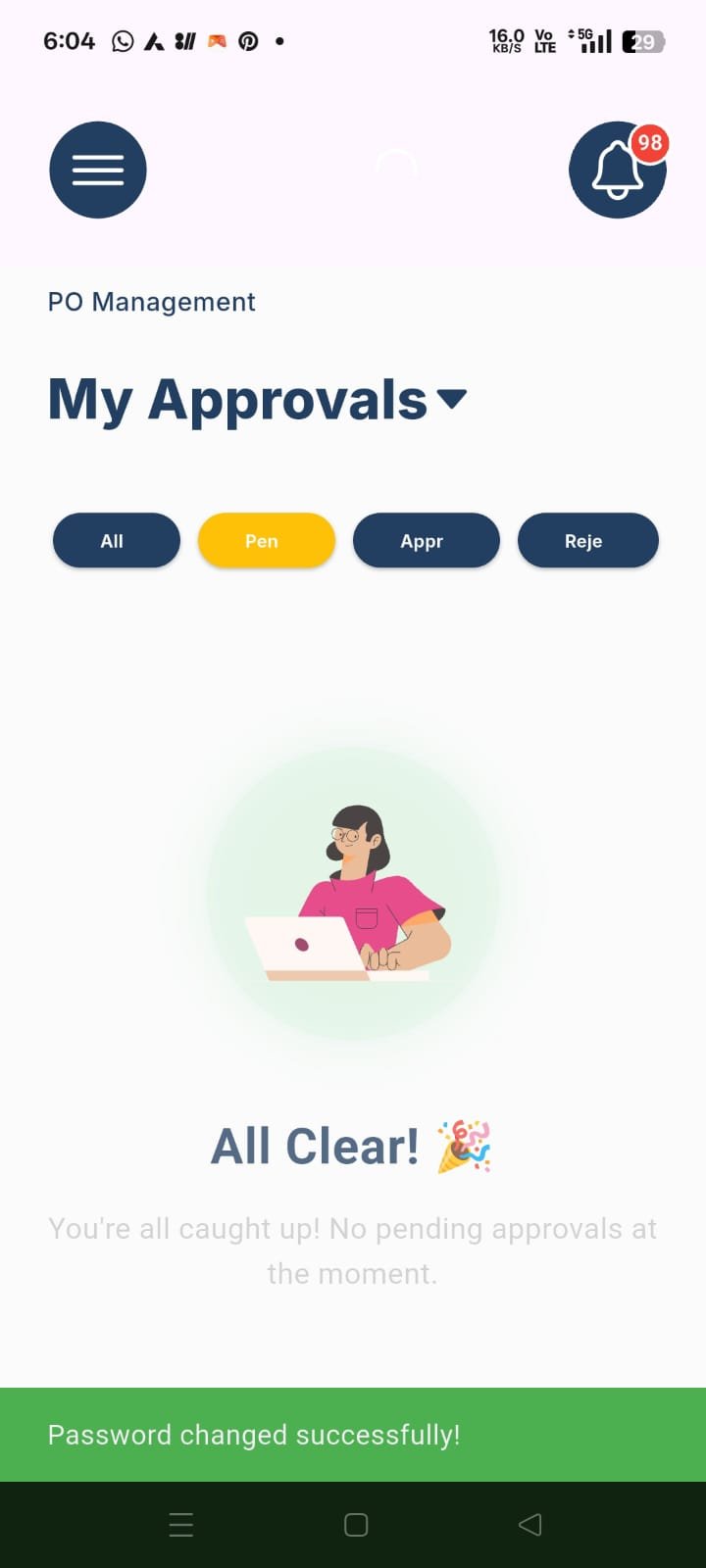
Password changed successfully
Quick Tips
- Choose something you can remember but others cannot guess — a short passphrase with a number and a symbol works well. Do not reuse an obvious or old weak password.
- Do not use your User ID as your password.
- Temporary passwords are for one-time use — change to your own password as soon as you log in.
- Never share your password. If a temporary password was emailed to you, change it promptly so the emailed one no longer works.
- Trouble logging in? Contact the IT / ERP support team.